Scope of this guide
- Covers
- Diagnosing dropouts, Wi-Fi in apartment buildings, mesh versus wired access points, and separate networks for smart devices
- For
- Anyone whose smart lights, plugs or cameras keep showing as offline
- You’ll leave with
- Six fixes in order of cost, starting with free ones
When a smart plug shows “No response” or a camera feed freezes, the device usually gets the blame. Far more often, the problem is the network it sits on. Smart home devices are small, low-power radios, and they’re the first things to drop when Wi-Fi gets weak or crowded.
Start by finding the pattern
Before changing anything, notice what’s failing and when. The pattern usually points straight at the cause.
| What you see | Likely cause | Try first |
|---|---|---|
| One device fails wherever it goes | The device itself | Reset it, or check for a firmware update |
| Several devices in one part of the home | Weak coverage | Move the router or add an access point |
| Everything struggles in the evening | Congestion on 2.4 GHz | Change the Wi-Fi channel or move devices to Thread or Zigbee |
| Devices vanish after a router restart | Settings, not signal | Reserve fixed addresses for hubs and controllers |
Cause 1: weak coverage through old walls
Wi-Fi loses strength every time it passes through a wall, and dense materials cost far more than drywall. Brick, concrete and plaster on metal lath can cut a signal so hard that a router covering an open-plan condo barely reaches the back bedroom of a prewar apartment. Moving the router out of a closet and off the floor helps a little. Adding access points helps a lot.
Cause 2: a crowded 2.4 GHz band
Most smart plugs, bulbs and sensors only use the 2.4 GHz band, and in an apartment building that band is shared with dozens of neighbors’ networks. Dropouts in the evening, when everyone is home, are the giveaway. Your phone moves to 5 GHz and seems fine, while the smart devices stay stuck on the busy band.
A router or access point with good automatic channel selection helps. So does moving some devices to low-power mesh protocols such as Thread or Zigbee, which build their own network between devices through a compatible hub.
Cause 3: mesh units talking to each other over the air
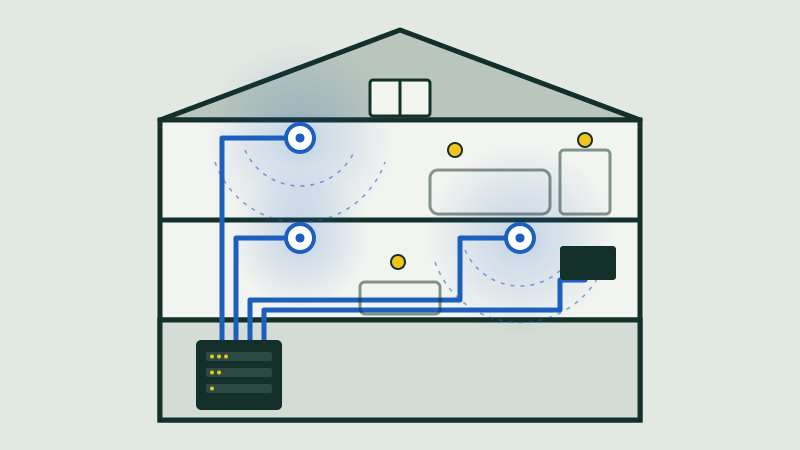
Consumer mesh kits are easy to set up, but most send traffic between their units over the same airwaves your devices use. Each wireless hop between units costs speed, and the farthest unit is the weakest. Connecting the units with Ethernet, known as wired backhaul, is often the biggest single improvement in a larger home.
Cause 4: too many devices for the router
A home with smart lights, shades, cameras, speakers and thermostats can pass 50 connected devices without anyone noticing. Some entry-level routers struggle well before that and start dropping older connections to make room for new ones. Equipment sized for the device count fixes it.
Cause 5: everything on one network
Putting smart home devices on their own network, either a separate Wi-Fi name or a VLAN on equipment that supports it, stops them competing with laptops and streaming. It also limits what a compromised device can reach, and it makes troubleshooting easier because you can see exactly what’s on the smart home side.
Fixes in order of cost
- Restart in the right order: modem first, then router, then access points, then devices.
- Move the router into the open, high up and as central as you can.
- Reserve fixed addresses for hubs and controllers in the router settings, so they don’t move after a restart.
- Set up a separate network for smart home devices.
- Add access points, wired back to the router wherever you can run cable.
- Replace the router with equipment sized for your device count, with a cable run to each access point.
In apartments where running cable means opening plaster, step 5 is where professional help pays off. Network installers such as Nex AV plan cable routes around plaster walls and building rules, so access points end up where coverage is needed rather than wherever an outlet happens to be.
Common questions
Should I buy a mesh system or separate access points?
For a small apartment, a good mesh kit is often enough. For larger homes, older buildings or homes with many devices, wired access points are more reliable. If you do buy mesh, connect the units with Ethernet wherever you can.
Why do my devices only connect to 2.4 GHz?
Many smart devices only have a 2.4 GHz radio, because it reaches farther through walls and uses less power. That’s normal. If setup fails, check that the network you’re joining offers 2.4 GHz.
Will a faster internet plan fix dropouts?
Usually not. Your internet plan decides how fast data reaches your home. Dropouts are about how well it moves around inside your home, which comes down to the router, the access points and the wiring.
Is it safe to keep cameras on my main network?
It works, but a separate network for cameras and other smart devices is safer, because it limits what a compromised device can reach.
Next guideMedia room or dedicated theater? How to decide before you build
Read the next guide